各位ICLP的同學和老師們好:
我是李啟德,一位新生。我想趁這次機會向您介紹我四年前在北京用過的電子詞彙卡片系統 ,其名為ZDT。它可能會有助於加快您備課和複習生詞的速度與效果。關於已存在的多種詞彙卡片軟體,我並不是專家,而且我明白當前的詞彙卡片軟體五彩繽紛。我想很多同學和老師也能幫我們推薦一些好軟體,所以歡迎各位在此電子報補充說明。在2008年,我和我的同學們選用此軟體的原因在於它的功能很有效、價錢免費,以及源碼開放。本人在下述的報告中,先主觀地比較電子詞彙卡片軟體和紙上詞彙卡片的優劣,從而用屏幕圖像來指明ZDT的功能。接著,我會介紹ZDT2Go,一個來源於ZDT的手機應用程式和進行類似的功能介紹。由於ZDT2Go並不是針對最新的智慧手機而設計的,我把它安裝到我的按卓(Android)智慧手機的過程中,發現它網站上的安裝步驟並非健全,需要我想出一個處理方法才能安裝得好,所以下述也有相關的安裝步驟說明和圖像。最後,因為我曾經開發過一些簡單的手機軟體,為了一起合作寫手機程式,我這個學期打算加入台大的3C手機程式設計社團。假如您對於改善ZDT2Go有任何建議,我會很感謝收到您的意見。最終,由於我們在此華語研習所的任務很多,我在這個週末有點力不從心,無法把此報告的全部內容翻成中文,請見諒!畢竟,上個禮拜天是中秋節,我非烤肉不可。或許將來我會有機會繼續翻譯此份報告。以下的報告是英文說明,謝謝您的關注。
Dear ICLP students and faculty,
Hi, by way of reintroduction my name is 李啟德 (Richard Callahan) and I'm one of the new students this quarter. I'd like to take this opportunity to introduce to you an electronic flash card system, ZDT, that I used four years ago when I studied at IUP in Beijing and which may help you to increase the speed and effectiveness of preparing for class and reviewing material. I'm not an expert on all the different flash card systems that are out there - I understand that there are many, and it would be fantastic if other students and teachers were to add their own suggestions for flashcard software. Back in 2008, this was the "best" system available at the time, because it was free, open-source, and a functional flash card program. This write-up starts with a subjective comparison of the advantages and disadvantages of using electronic flash cards over paper flash cards. Then I give an overview of what ZDT is and how to use it, with a demonstration of the software with screenshots. I then introduce to you ZDT2Go, an open-source application for smartphones written in 2008 that is based on ZDT. I'll provide some screenshots of the software and then explain how to install it in some detail, as I found the online installation guide to be a little outdated. Finally, since I have a modest background in developing software for the Android platform, this quarter I'm hanging out with the NTU 3C Mobile Phone Software Development Club. If you have some suggestions for improving this software (or have other features that you wish were available in electronic flash card software), please let me know and we may be able to make something happen. Also, excuse me for getting this first draft out in English, but as it's fairly detailed I didn't have time this weekend to translate it to Chinese (and honestly I was barbequing for the Moon Festival as well...) With any luck I'll have time to work on the Chinese version for the next edition.
I. Advantages and Disadvantages of Using Electronic Flashcard Software
Advantages:
1. You will basically hold onto them forever once you make them.
2. They're light: all you need is your computer or a smart phone.
3. It's faster to make an electronic flash card than a normal flash card (I find this especially true for modern Chinese - for more obscure characters in classical texts that may be harder to type, it's probably a wash). In fact coupled with an electronic dictionary such as Wenlin, it's so fast that you can literally make flashcards for new words while you listen to lectures in Chinese or watch the news.
4. You can share the process of making flash cards with your classmates.
5. If you're studying Thought and Society or Business Chinese, I can share with you flashcards for all the words in the books, since I took those particular classes in the past.
6. Paper flash cards have only two sides, but we really have three things to learn: the meaning, the Chinese character, and the pronunciation. If you add the usage of the word and learning both traditional and simplified characters to the mix, now that's five things. So when you make a paper card, you'll often be stuck with putting the pronunciation in one corner and the Chinese character in two corners of the same side, and the meaning on the other side. Then you have a hard time training yourself to pronounce the Chinese characters based on their reading. There are ways around this, of course, but it's inconvenient. Electronic flash cards get around these problems.
7. You can have the software keep track of what words you find difficult, and only show you those flashcards. It's a lot harder to do that with paper flashcards when you pick the flashcard deck back up after a week.
8. You can have the flashcard software remind you to review words that you haven't looked at for a while.
Disadvantages:
1. If you are working on your ability to write Chinese characters by hand, the process of making paper flash cards is somewhat helpful, while electronic flash cards are not helpful at all. In fact, one of the best students at IUP was so good exactly because he made efficient use of his time by writing out paper flash cards and pronouncing the words as he wrote them. You really don't get this advantage with electronic flash cards unless you make them by writing on the phone with a stylus.
2. You have to remember that you're smarter than the software, and make sure that it doesn't autofill table entries with incorrect pronunciations, for example.
3. If you don't have a smartphone, then it's easier to carry paper flash cards around than it is to carry your computer. And so you can study on the subway, etc. This disadvantage is overcome if you have a smart phone.
4. I haven't found an easy way to focus on chengyu.
Electronic flash cards are not the best choice for everyone, or indeed for anyone all the time. I found them quite useful because I was extremely pressed for time when I was studying in China, as I had to do research for my master's degree while at the language school. Preparing the cards together with classmates turned out to be a useful way to advance despite those constraints. Additionally, because of that time crunch, I chose not to focus on writing the characters by hand, as I saw that as the least important component of Chinese for me to learn for my future work. Also, I am a computer nerd.
Without further ado, here's an introduction to the ZDT flashcard system.
II. ZDT Overview
The ZDT page is at http://zdt.sourceforge.net/. The software is available for Windows, Macintosh and Linux. Installation instructions are available on the site. Personally I like ZDT because it's free and functional, but if you decide that you prefer another software package, the good news is that you can export your flashcards into formats that can be imported into other software.
How to Use ZDT
There's a tutorial online for how to use the software at the following page: http://zdt.sourceforge.net/main/getting_started/. I'm not going to go into too much detail on how to enter words into the software since the online tutorial is fine for that, but note that you can save a backup copy of all your words via File → Backup Data, and restore everything via File → Restore Data. I found it extremely easy to move all my Chinese words from my old computer (running Windows) to my new computer (running Linux and Windows).
Screen Shots
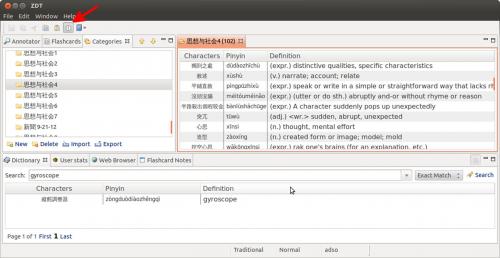
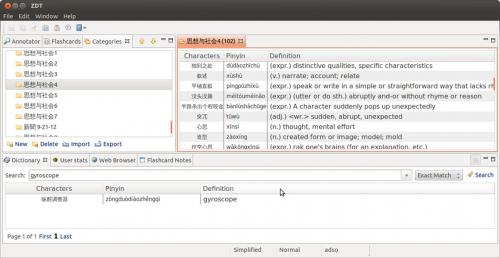
Figures 1 and 2 show two examples of new words entered into ZDT. (This is the Linux version, so it may look slightly different in Windows, but it's basically the same.) Note that ZDT comes with a built-in dictionary, which appears to be fairly comprehensive. I have not used it though, as I have been using Wenlin instead.

Figure 1. Example of a character list in ZDT, with traditional characters displayed. The button indicated by the arrow toggles between traditional and simplified character display (see Figure 2).

Figure 2. The same screen as in Figure 1, with a simplified character display. Note that the names of the categories themselves (left) are whatever the user specifies when creating a new category, and do not change between simplified and traditional characters.
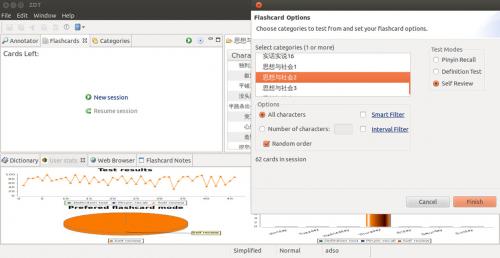
Here is the flash card software in action. Go to "Flash cards," click on "New Session," and a dialogue window opens. Next you can select a set of flashcards to review based on a category. I always use "Self Review," which emulates the experience of turning over a set of flashcards yourself.

Figure 3. Setting up a flashcard review session.
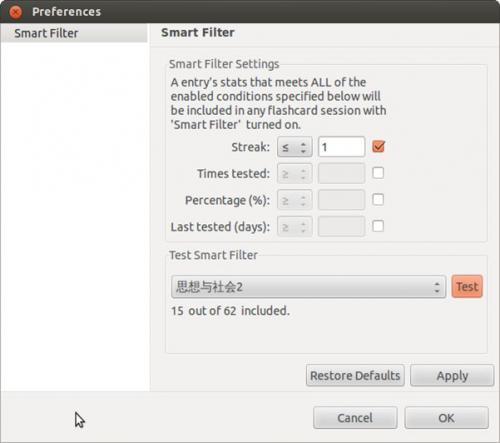
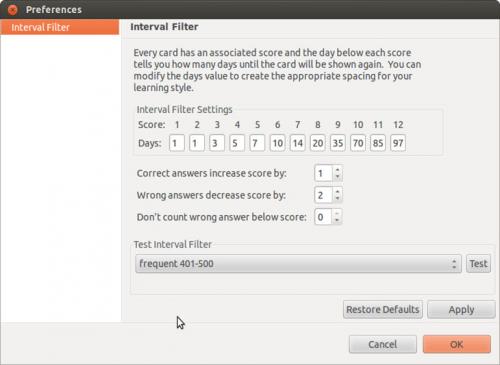
Notice that a user can have the software put fewer characters in the deck to be reviewed than are in the category, which can sometimes be useful if you have a category containing hundreds of words. You can also see two options here: "Smart Filter" and "Interval Filter," which by default are unchecked when you start a flashcard session. The smart filter lets you only review words that you've found hard to remember (Figure 4). Figure 4 demonstrates setting up a session in which I only review words that I've never gotten right twice in a row ("Streak <= 1"). You can also set up the filter to only review words that you haven't seen for a while ("last tested"), words that you haven't looked at very much at all ("times tested"), or words that you often get wrong based on percentages instead of streaks. The "Test Smart Filter" feature just allows you to make sure that the filter works the way you expect it would, before applying it to your deck of flashcards. The interval filter (Figure 5) allows you to schedule regular review sessions, so that you don't forget and then and up cramming before a test. Ideally this would be a way to schedule regular review of flashcards, but in practice I haven't messed around with this very much. The settings in Figure 5 indicate that words with a score of 1 would be reviewed every day, those with a score of 6 every 10 days, and so on. The more you correctly identify a flash card, the less often you would review it.

Figure 4. The smart filter.

Figure 5. The interval filter.
Reviewing Flash Cards with ZDT
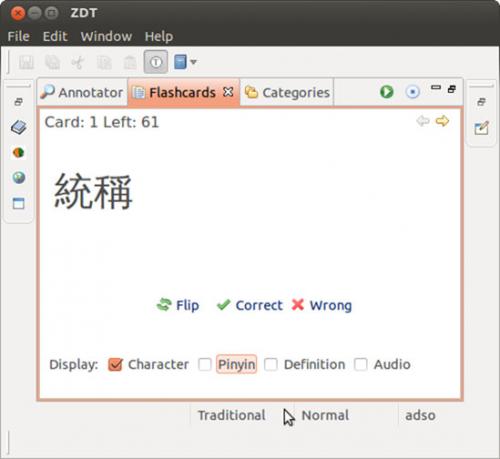
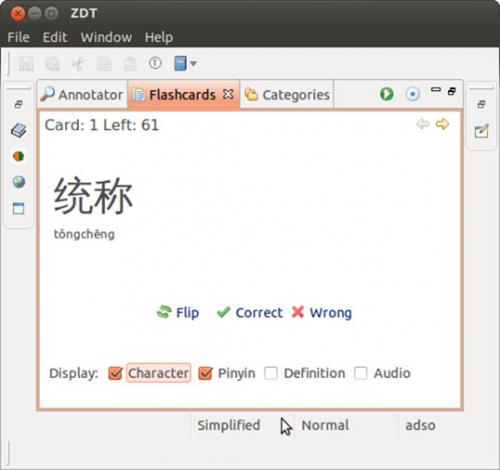
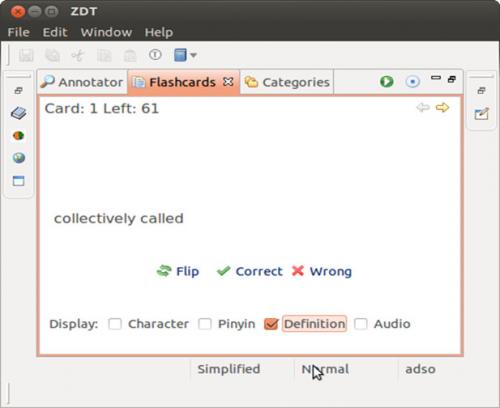
Figure 6 shows a sample self-review session. Note that you can select the character, Pinyin, or definition to display on the face of the card, or a combination of all three. As with generating characters, clicking on the "T" button in the menu bar at the top toggles between displaying simplified and traditional characters. "Flip" displays everything on the screen. The user then clicks on "correct" or "wrong" as appropriate, and the next card is shown. Cards that you get wrong randomly appear after all cards are shown once, to reproduce the effect of sorting cards into "right" and "wrong" piles, shuffling the "wrong" pile, and reviewing again. After all cards are reviewed, the percent answered correctly is shown to the user, so that you can review until the number answered correctly is above a certain percentage. (Note that the characters, definitions, and Pinyin are centered on the screen in the Windows and probably the Macintosh versions, but they are justified left in the Linux version probably because of a bug that the developer never got around to fixing.)


Figure 6. A flashcard self-review session.
III. Running ZDT on a Smartphone
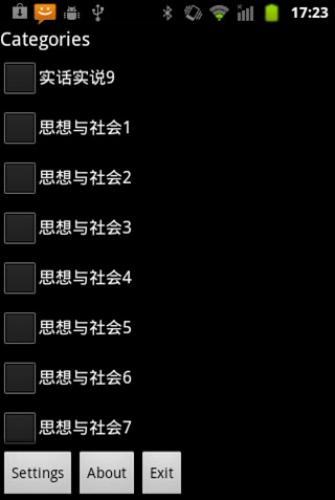
ZDT does not run directly on smartphones, but another developer has created an application, "ZDT2Go," that does. It's available at http://code.google.com/p/zdt2go/. This is software that takes a set of .zdt vocabulary files and generates a Java flashcard application that can be run on most smart phones, including Android (and most likely on iPhones as well, although I haven't done this myself). The software is open source and rough around the edges, but it works and I've found it really useful. Figure 7 shows screenshots from the application.


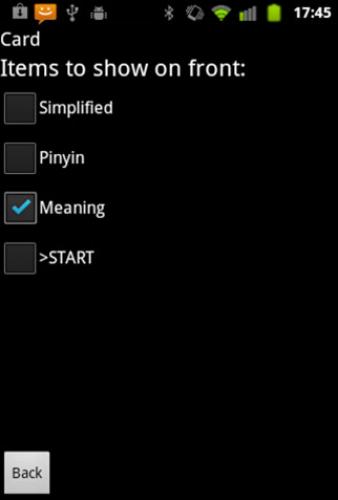
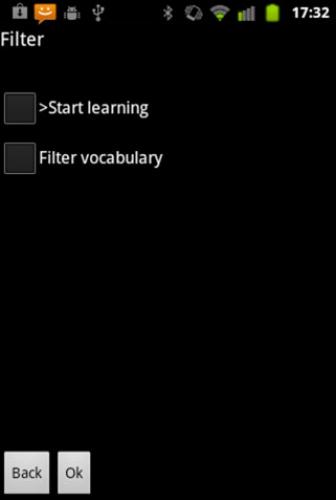
Figure 7. Selecting a flashcard category, applying a flashcard filter, and selecting a method for flashcard review in ZDT2Go.
Opening ZDT2Go presents the list of available categories (Figure 7, left). You can only review one at a time (if you select more than one and hit the "Start" button that appears, then the last category you selected gets displayed). Just select the category and hit the "Start" button that appears next to "Exit." Next (Figure 7, middle) you get the option to apply a Smart Filter as in Figure 4, or just go straight to studying. (I haven't checked that the smart filter works properly, but the interface looks fine.) Next you get asked whether to display the simplified characters, Pinyin, or the meaning on the front of the card (Figure 7, right). There is currently no option for displaying traditional characters which is a shame, but fixing this shouldn't be too difficult and I'm hoping to do that later this quarter.
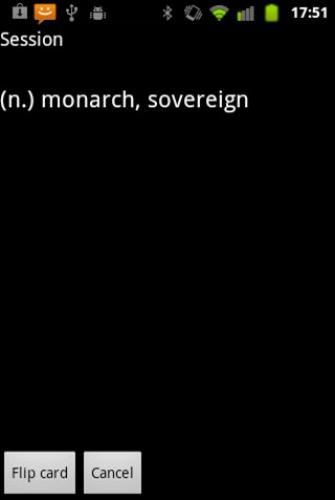
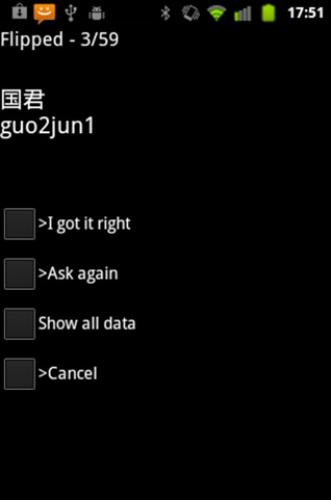
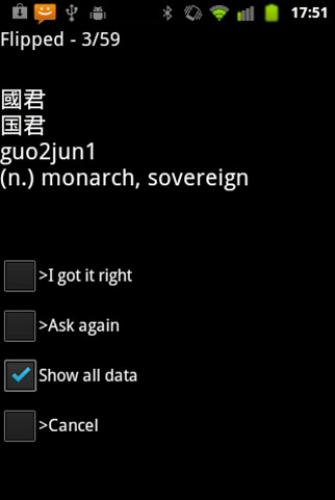
Figure 8 shows the process of reviewing a flash card in ZDT2Go. It's pretty straightforward: "I got it right" is the same as the "correct" button in ZDT, and "Ask again" does the same thing as the "wrong" button in ZDT (Figure 6). Upon correctly reviewing all cards at least once, you get the percentage answered correctly displayed before returning to the main menu. Also note that although only the simplified characters can be reviewed directly on the face of the flashcards, selecting "Show all data" (Figure 8, right) does display the traditional characters.


Figure 8. Reviewing a flashcard in ZDT2Go.
Aside from not showing traditional characters, the second disadvantage of ZDT2Go is that when you add new sets of flashcards to the program, you have to uninstall the program on your phone and then reinstall it. That doesn't take long, but it does delete information associated with which vocabulary words you find more difficult than others. Depending on your study habits, this may or may not be a problem.
Overall, despite its drawbacks, in the last two weeks I've found ZDT2Go to be an extremely useful companion to ZDT, giving me extra time to study on the subway, at the post office, etc.
IV. Installing ZDT2Go On a Smartphone Running Android
ZDT2Go was written around 2008, so it runs in Java and not Android's native .apk format. It is, however, possible to run ZDT2Go on Android, and indeed the process is not too difficult. The development site has installation instructions at http://code.google.com/p/zdt2go/wiki/Installation, but they are a little outdated and don't explicitly cover the process of conversion to Android. Since you'll presumably be importing vocabulary from IUP textbooks into ZDT2Go, follow the installation instructions for the "Power User" section:
1. Install the Java Runtime Environment on your computer. If running Windows, the programmer has a link: http://java.com/en/download/. I also had luck with the following site: http://www.oracle.com/technetwork/java/javase/downloads/java-se-jre-7-download-432155.html.
2. Download the latest zdt2go_generator-X.X.X.jar file from the ZDT2Go site.
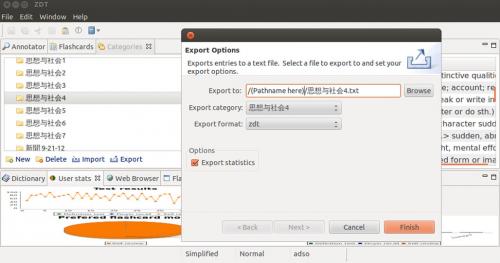
3. In ZDT on your computer, under the "Category" tab, export each flash card category that you would like to use on your cell phone into a folder, one at a time. Each time you export, make sure that "Export statistics" is selected, and use "ZDT" as the export format (Figure 9). Export all the categories that you want to the same folder.

Figure 9. Example of exporting a category from ZDT.
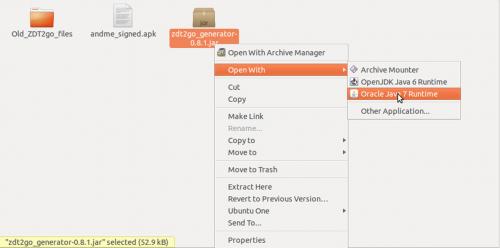
4. Next, run the Java program that you just downloaded by right clicking on it and running it using the Java Runtime Environment you just downloaded (Figure 10). Figure 10 shows the procedure in Ubuntu Linux, but it's similar in Windows.

Figure 10. Running the ZDT2Go generator.
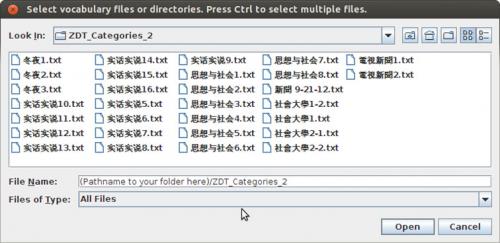
5. The ZDT2Go generator creates a Java application that runs on mobile phones - at least, on mobile phones that directly run Java applications. (Android phones only run .apk files, so the output from this generator is just an intermediate step.) Next, the generator will ask you for an output folder. This is where the Java application will be stored. Pick your favorite folder. It will then ask you to select the exported .zdt files to be used in the smartphone application. If you just browse to the folder without selecting any files explicitly (Figure 11), then all files in that folder will be exported. This process will create two files in the output directory you selected, "ZDT2Go.jar" and "ZDT2Go.jad".

Figure 11. How to select all ZDT flashcard files in a folder for entry into ZDT2Go.
6. Next, you need to convert these to a .apk file in order to install ZDT2Go on Android. It's possible to download software that can do this (and I believe it's easier to do this on a Windows machine than in Linux), but since I'm running Linux I just navigated to a Website for a company, NetMite, that will do this for you for free:
http://www.androidgyan.com/2011/08/run-jar-files-on-android-ways.html.
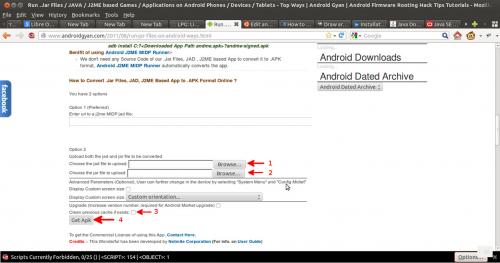
I recommend bookmarking this page in your browser. Select the .jad and .jar files (steps 1 and 2 in Figure 12), and also be sure to check the box labeled "Clean previous cache if exists" (step 3). In an effort to keep the load on its servers down, Netmite may try to remember if you've been to its site and requested the same .apk file before, so if you leave this box unchecked and if you've already converted a set of flash cards in the past, you might find yourself installing the same old deck on your smartphone without the new cards. Finally, click on "Get Apk" (step 4) and you will download the ".apk to your browser's default folder for downloads.

Figure 12. How to convert your ZDT2Go.jar and ZDT2Go.jad files to an .apk file.
7. Next, connect your smartphone to your computer via your USB connection. (If for some reason you have the phone set to debug mode under Settings → Applications → Development → USB Debug Mode, uncheck that box.) A screen should appear asking if you would like to save files to your SD Card. Select the button labeled "Start USB Storage Mode." A message will appear stating that some of your applications may lose functionality while you are transferring files, so you should exit this mode when you are done. Select "OK." Application Manager → If you don't have a way to browse the folders on your mobile phone yet, make sure you can do so. At this point, your computer should recognize your smartphone as a new USB device, just like a flash drive. (I can't show a screenshot of this process because I need USB Debug Mode on to take screenshots.)
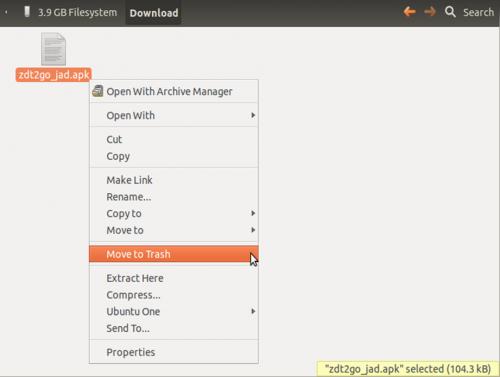
8. Browse to a folder on your phone to which you'd like to save the .apk file. (I use the "Download" folder.) If you have already completed this step for a set of flash cards in the past, delete the old .apk file (Figure 13). Depending on your smartphone, trying to overwrite a previous .apk file on your SD card may not work, and you may not see your new cards when you uninstall and reinstall ZDT2Go.

Figure 13. Delete your old ZDT2Go_jad.apk file if you already have one.
9. Drag and drop your new ZDT2Go_jad.apk file created in step 6 to a folder in your smartphone, then disconnect the phone (safely eject the device, then exit USB Storage Mode on your phone and disconnect the USB cable from your computer).
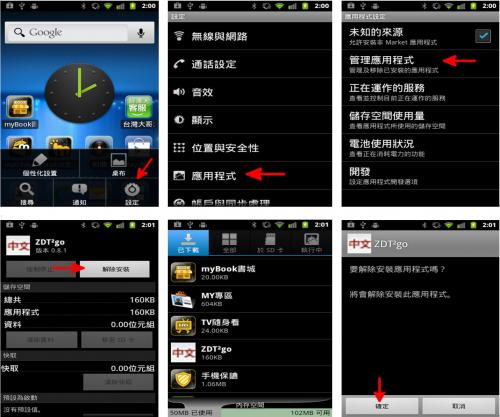
10. If ZDT2Go is already installed on your phone, uninstall it (Figure 14): from the home page, select the menu button and then Settings → Applications → Manage Applications and select the ZDT2Go icon from the list of installed programs. Next select "Uninstall" and "OK." Figure 14 has this in pictures if you're still working on deciphering the Chinese on your phone.

Figure 13. Delete your old ZDT2Go_jad.apk file if you already have one.
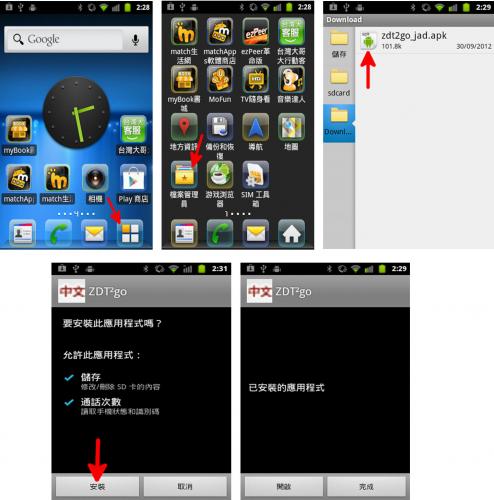
11. Next, navigate to your SD card, select the ZDT2Go_jad.apk file that you moved to the SD card in Step 9, and follow the on-screen prompts to install ZDT2Go (Figure 14).

Figure 14. Installing ZDT2Go on your Android phone. Note that in the lower left step, you're agreeing to allow the program to write to your SD card (most likely to save statistics associated with how often you're correctly remembering the vocabulary words) and to read and write from the Android phone's log files. When you finish installation, you can click on "Start" (the lower left corner of the bottom right panel) to launch ZDT2Go directly.
You'll need to repeat steps 3-12 each time you update your flashcard deck on the phone, but the whole procedure takes about three minutes once you get used to it.
Tips: If you install the program and it looks like you didn't get any of the new cards, it's probably because: 1) when you exported the new category from ZDT you didn't check the "Export Statistics" box in Figure 9; 2) you didn't check the "Clear previous cache if exists" box in Figure 12; or 3) you didn't delete the old .apk file on your phone in Figure 13. Similarly, if you select a category to review in ZDT2Go and the "Start" button does not appear, that's probably because you forgot to check the "Export Statistics" box when exporting the vocabulary words from ZDT for that particular category.
Possible Additions to ZDT2Go
I have the following ideas for improving ZDT2Go. If you have any preferences yourself or suggestions for improving ZDT itself, please let me know:
1. Implement traditional character flash cards.
2. Turn ZDT2Go into an Android application from the get-go, so you don't have to keep going to Netmite to convert .jad and .jar files to an .apk file.
3. Allow the Android app to directly import new categories from the SD card, so that you don't have to uninstall and reinstall the app (and lose your flashcard statistics) every time you want to add new words.
4. Allow a user to export flashcards back out of ZDT2Go, in order to pass statistics about which flashcards are difficult to answer back to ZDT.
5. Make ZDT social, in the sense that you can contact anyone else at ICLP with a smartphone and directly share flash cards. This is actually easier than it sounds, because I did something very similar with photo sharing for a class project last spring. As long as ICLP can provide us with a computer we can use as a server, this would work.
6. Related to #5, create a feature that merges categories together, deleting redundant words and helping to identify cases in which someone may have typed in the wrong Pinyin pronunciation, for example.
7. Create a feature that directly infuses your brain with vocabulary words while you sleep.
...and some more advanced stuff that may be too pie-in-the-sky.
In summary: electronic flashcards are not a panacea, but can often be a useful alternative to paper flashcards. Moving these flashcards to mobile phones also can make life much easier. I hope some folks out there find this write-up helpful for their studies this fall. Thanks for reading!